
Introduction
Are you tired of constant buffering, unexpected latency spikes, or unstable connections ruining your viewing or broadcasting experience? If so, you are not alone. Setting up a reliable IPTV stream is one of the most talked-about challenges in today’s rapidly evolving digital media landscape — and for good reason.
The global IPTV market was valued at over $77 billion in 2023 and is projected to exceed $230 billion by 2032, according to industry analysts. Live-streaming demand is surging across sports, entertainment, education, and religious broadcasting. Consumers are cutting the cord faster than ever, flocking to IP-based television for its flexibility, cost-efficiency, and sheer content variety.
But here is the thing: simply having an IPTV subscription or encoder is not enough. To truly unlock a smooth, high-quality IPTV stream, you need the right setup, the right protocols, and the right optimizations working together in harmony.
In this guide, we cover 7 proven ways to boost your streaming experience, whether you are a beginner just unboxing your first encoder, a business deploying hotel IPTV systems, or a reseller building 24/7 live channels. Let us dive in.
Core Components of an IPTV Stream Setup
Before you can optimize anything, you need to understand what makes up a solid IPTV stream infrastructure. Think of it as a chain — every link matters.
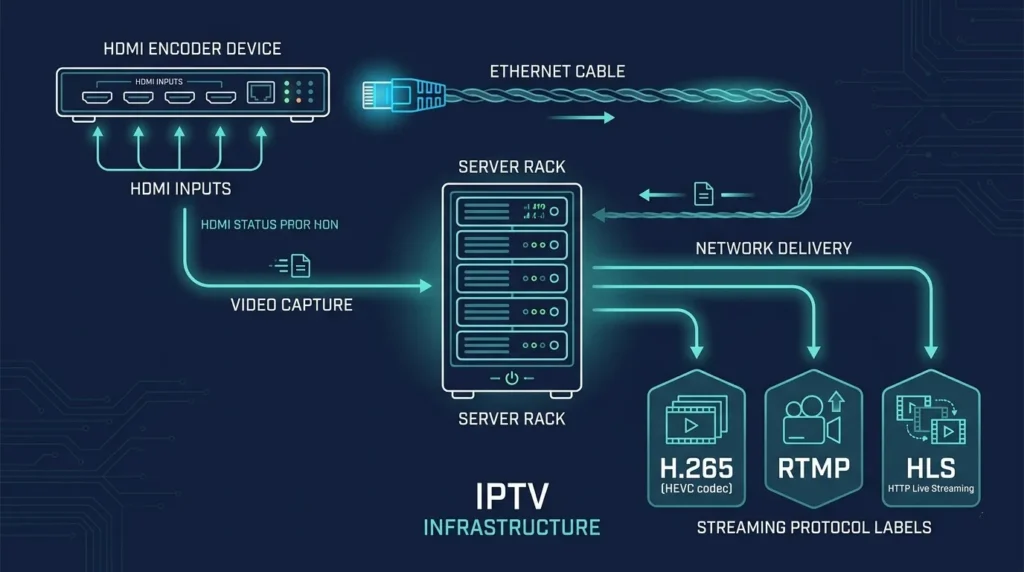
Source Input
Your video source is the starting point. Options include:
- Cameras (broadcast cameras, DSLRs, action cameras)
- HDMI inputs from set-top boxes, gaming consoles, or computers
- IP cameras for surveillance-style or remote streaming
- NDI sources for professional studio environments
For beginners, an HDMI capture card paired with a webcam or gaming console is the easiest entry point. For advanced users and businesses, professional broadcast cameras with SDI outputs deliver far superior quality and reliability.
Codec Options: H.264 vs H.265
Codec selection directly impacts your streaming quality and bandwidth consumption:
| Codec | Compression Efficiency | Bitrate Requirement | Best Use Case |
|---|---|---|---|
| H.264 (AVC) | Standard | Higher (4–8 Mbps for 1080p) | Broad device compatibility |
| H.265 (HEVC) | Up to 50% better than H.264 | Lower (2–4 Mbps for 1080p) | Bandwidth-constrained environments |
Pro Tip: H.265 is ideal for IPTV resellers and hotel deployments where bandwidth efficiency directly impacts operating costs.
Streaming Protocols
Choosing the right protocol for your IPTV stream is critical:
- RTMP (Real-Time Messaging Protocol): Low latency, widely supported by platforms like YouTube and Facebook Live. Best for live events.
- HLS (HTTP Live Streaming): Adaptive bitrate streaming, excellent for VOD and large-scale delivery. Apple ecosystem friendly.
- UDP (User Datagram Protocol): Used in closed, controlled IPTV networks (like hotels or campuses) for ultra-low latency multicast delivery.
- SRT (Secure Reliable Transport): Emerging protocol combining low latency with error correction — excellent for long-distance contribution streams.
Bandwidth and Bitrate Considerations
Match your bitrate to your available upload bandwidth. A general rule of thumb:
- 720p @ 30fps: 3–5 Mbps
- 1080p @ 30fps: 5–8 Mbps
- 1080p @ 60fps: 8–12 Mbps
- 4K @ 30fps: 15–25 Mbps
Always leave 20–30% headroom above your stream’s bitrate to avoid packet loss and buffering spikes.
Setup Time and Efficiency
One common misconception is that getting an IPTV stream live is a days-long ordeal. In reality, with modern hardware encoders, you can go from unboxing to live streaming in under 30 minutes — if your network is pre-configured.
Here is a realistic time breakdown:
| Task | Estimated Time |
|---|---|
| Physical hardware setup | 5–10 minutes |
| Network configuration | 5–15 minutes |
| Encoder software configuration | 5–10 minutes |
| Test stream and quality check | 5–10 minutes |
| Total | 20–45 minutes |
Software-based IPTV solutions (like OBS Studio paired with a streaming server) can be faster to configure but tend to require more CPU resources and are less stable under 24/7 operation compared to dedicated hardware encoders.
Network Configuration Note: Always ensure your streaming device has a wired Ethernet connection rather than Wi-Fi. Even a strong Wi-Fi signal introduces packet jitter that can destabilize your IPTV stream under load.
Step-by-Step Setup Instructions
Step 1: Connect Your Video Source
Begin by connecting your video source to your encoder or capture device. If using an HDMI source:
- Plug the HDMI cable from your source device into the HDMI-IN port of your encoder or capture card.
- If your source outputs SDI, use an appropriate SDI-to-HDMI converter or a hardware encoder with native SDI support.
- Confirm the source signal is recognized by checking the encoder’s status LED or software interface.
Pro Tip: Use high-quality shielded HDMI cables rated for at least 18Gbps to prevent signal degradation, especially over longer cable runs.
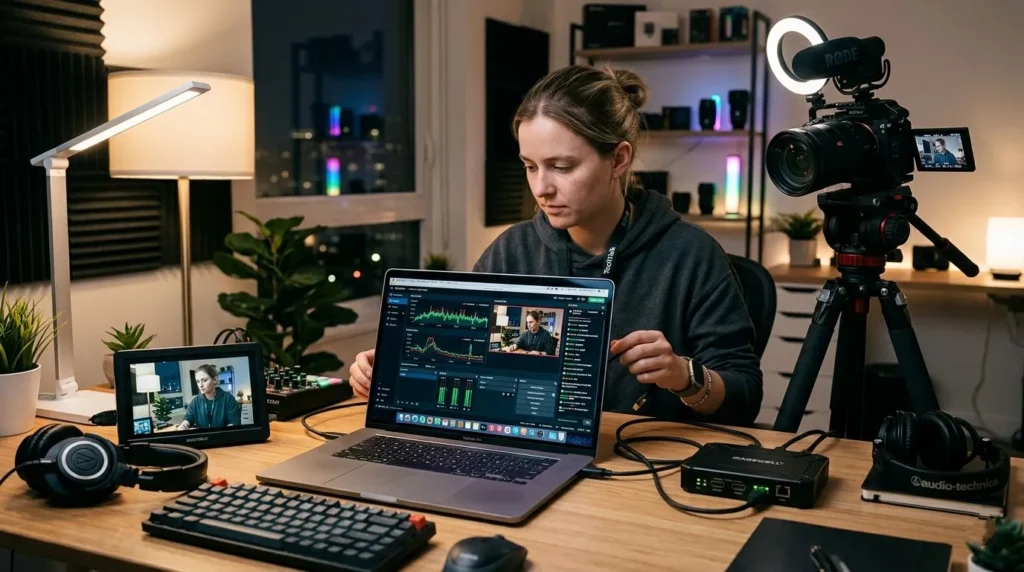
Step 2: Configure Network and Server Settings
A stable network is the backbone of any successful IPTV stream.
- Connect your encoder to the router via a Cat6 or Cat6a Ethernet cable.
- Assign a static IP address to your encoder (either through your router’s DHCP reservation feature or manually on the device itself). This prevents the encoder from changing IP addresses after a restart.
- Open the required ports on your firewall:
- RTMP: Port 1935
- HLS: Port 80 or 443 (HTTPS)
- UDP multicast: Ports vary by configuration (typically 1234 or 5000)
- If streaming through a cloud media server, input the server’s ingest URL and stream key into your encoder settings.
Pro Tip: If deploying behind a corporate firewall, work with your IT team to whitelist the streaming server’s IP range. Blocked ports are one of the most common causes of failed IPTV stream setups.
Step 3: Set Your Streaming Destination
Your IPTV stream can be sent to multiple destinations simultaneously using a concept called multi-streaming or simulcasting:
- YouTube Live: Use YouTube Studio to generate your RTMP ingest URL and stream key.
- Facebook Live: Navigate to Facebook’s Creator Studio for your unique stream key.
- Custom IPTV Server: Input the RTMP or UDP URL of your self-hosted or third-party media server (e.g., Wowza, Nimble Streamer, or Ant Media Server).
- CDN (Content Delivery Network): For large-scale IPTV deployments, route your stream through a CDN like Cloudflare Stream or AWS MediaLive for global reach.
Step 4: Optimize Bitrate, Resolution, and Streaming Quality
This is where most beginners leave performance on the table. Fine-tuning your encoding settings can mean the difference between a choppy, pixelated stream and a broadcast-quality IPTV stream.
Key settings to configure:
- Resolution: Start with 1080p if your bandwidth supports it; fall back to 720p if upload speed is limited.
- Frame Rate: 30fps is the minimum for smooth live video; 60fps is preferred for sports and gaming content.
- Keyframe Interval: Set to 2 seconds (or 60 frames at 30fps). This is critical for HLS compatibility and adaptive bitrate switching.
- Profile: Use High Profile for H.264 or Main Profile for H.265 for best compatibility.
- Audio Codec: AAC at 128–192 kbps for most streaming; 320 kbps for music-heavy content.
Pro Tip: Enable CBR (Constant Bitrate) mode rather than VBR (Variable Bitrate) for live IPTV streaming. CBR ensures a consistent data flow that is far less prone to causing buffering on the viewer’s end.
Step 5: Launch Your IPTV Stream
With everything configured, it is time to go live:
- Click Start Streaming on your encoder or software.
- Immediately open a viewer-side test using a player like VLC, IPTV Smarters, or TiviMate to confirm the stream is appearing correctly.
- Check for audio/video sync — any drift greater than 100ms will be noticeable to viewers.
- Monitor your encoder’s CPU/GPU usage and ensure it stays below 80% load to prevent dropped frames.
- Once confirmed stable, share your IPTV stream URL or channel guide with your audience.
Pro Tip: Always do a 5–10 minute private test stream before going live publicly. This catches last-minute codec mismatches, audio issues, or network bottlenecks before they affect your audience.
Performance and Streaming Quality Benchmarks
Understanding what “good performance” looks like helps you troubleshoot problems and set realistic expectations. Here are the key benchmarks for a professional IPTV stream:
| Metric | Entry Level | Professional | Broadcast Grade |
|---|---|---|---|
| Max Resolution | 720p @ 30fps | 1080p @ 60fps | 4K @ 60fps |
| Latency (end-to-end) | 10–30 seconds (HLS) | 2–5 seconds (RTMP/SRT) | <1 second (UDP) |
| Supported Protocols | RTMP, HLS | RTMP, HLS, SRT | RTMP, HLS, SRT, UDP, RIST |
| Encoding | Software (CPU) | Hardware H.264 | Hardware H.265/HEVC |
| Simultaneous Streams | 1 | 2–4 | 8–16+ |
| Uptime Reliability | 95–98% | 99% | 99.9%+ |
For IPTV resellers and businesses, targeting 99% uptime and 1080p @ 30fps as a baseline is the industry standard. Anything below this risks subscriber churn and negative reviews.
Better Alternatives and Add-Ons
Once your baseline IPTV stream is running, these upgrades can dramatically elevate your operation:
H.265 Hardware Encoders Upgrading from H.264 to H.265 encoding cuts your bandwidth consumption nearly in half for equivalent quality. For resellers managing dozens of channels, this translates directly into lower server and CDN costs.
Dual-Stream Encoders A dual-stream encoder simultaneously outputs two independent streams at different resolutions or bitrates — perfect for multi-platform broadcasting (e.g., high-quality for your IPTV server, lower bitrate for social media simulcast).
External Audio Mixers For churches, esports arenas, and live events, a dedicated audio mixer with AES/EBU or balanced XLR outputs ensures pristine audio quality that a simple HDMI feed cannot match.
Redundant Network Failover Enterprise-grade IPTV deployments use dual-WAN failover routers that automatically switch between two internet connections if the primary goes down — protecting your stream’s uptime guarantee.
Tailored Recommendations by Use Case:
- Churches and Houses of Worship: Look for encoders with HDMI + audio XLR inputs, low latency, and easy-to-use interfaces for volunteers.
- Esports and Gaming: Prioritize 60fps encoding, low-latency RTMP delivery, and simultaneous Twitch + YouTube streaming.
- Hotels and Hospitality: Choose IPTV middleware solutions with multi-room distribution, VOD libraries, and IPTV management portals.
- IPTV Resellers: Focus on scalable streaming servers, EPG (Electronic Program Guide) integration, and support for 100+ simultaneous channels.
Deployment Use Cases
Understanding real-world scenarios helps illustrate the true versatility of a well-configured IPTV stream.
24/7 IPTV Channels for Resellers An IPTV reseller in Europe used a bank of H.265 hardware encoders feeding a Wowza Streaming Engine server to deliver 150+ live channels to 10,000+ subscribers. By switching from H.264 to H.265, they reduced their monthly bandwidth bill by 40% while maintaining 1080p quality across all channels.
Live Sports and Events A regional sports network streams local football matches using SRT protocol over a bonded 4G/LTE connection at stadiums where fixed-line broadband is unavailable. SRT’s built-in error correction eliminates the packet loss that makes traditional UDP streaming unreliable over cellular networks.
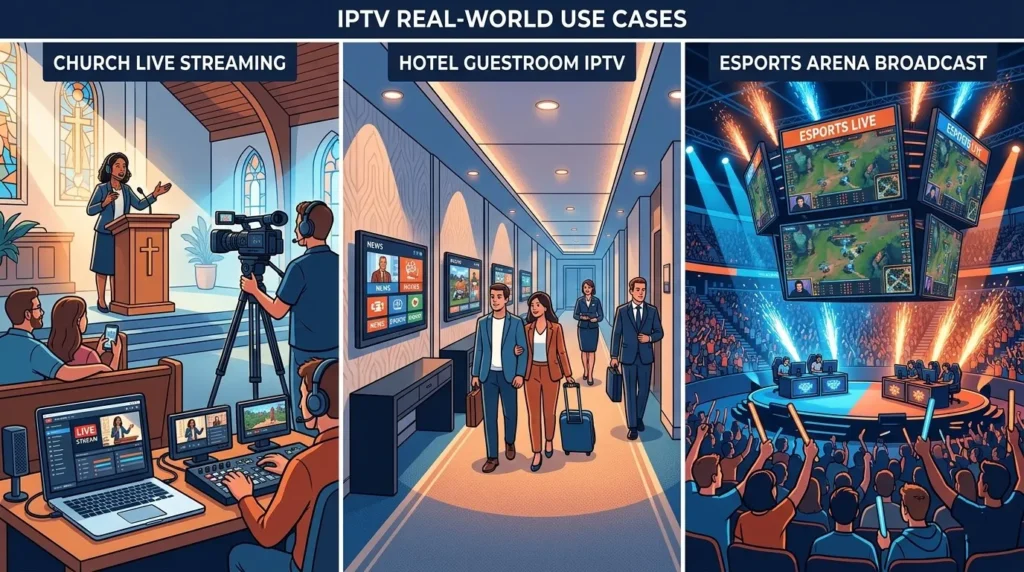
Church and Religious Broadcasting A congregation of 2,000 members deployed a single HDMI encoder connected to their existing AV system, streaming simultaneously to YouTube Live, Facebook Live, and their private IPTV server for international members — all from a single device with zero additional software.
Hotel Entertainment Systems A 300-room hotel chain implemented a UDP multicast IPTV system delivering 80 live channels over their existing LAN infrastructure, replacing costly satellite equipment and reducing their content delivery cost by 60% annually.
Common Mistakes to Avoid
Even experienced streamers fall into these traps. Here is what to watch out for:
Using the Wrong Protocol for the Platform Sending an HLS stream to a platform that expects RTMP (or vice versa) results in a failed connection with cryptic error messages. Always verify the ingest protocol your destination platform or server requires before configuring your encoder.
Ignoring Firmware Updates Outdated encoder firmware is a leading cause of unexplained drops, codec failures, and security vulnerabilities. Set a monthly reminder to check for firmware updates from your hardware manufacturer.
Overloading Available Bandwidth Streaming at 8 Mbps on a 10 Mbps upload connection leaves no headroom for network fluctuations, resulting in consistent buffering for viewers. Always keep your stream bitrate at or below 70% of your confirmed upload speed.
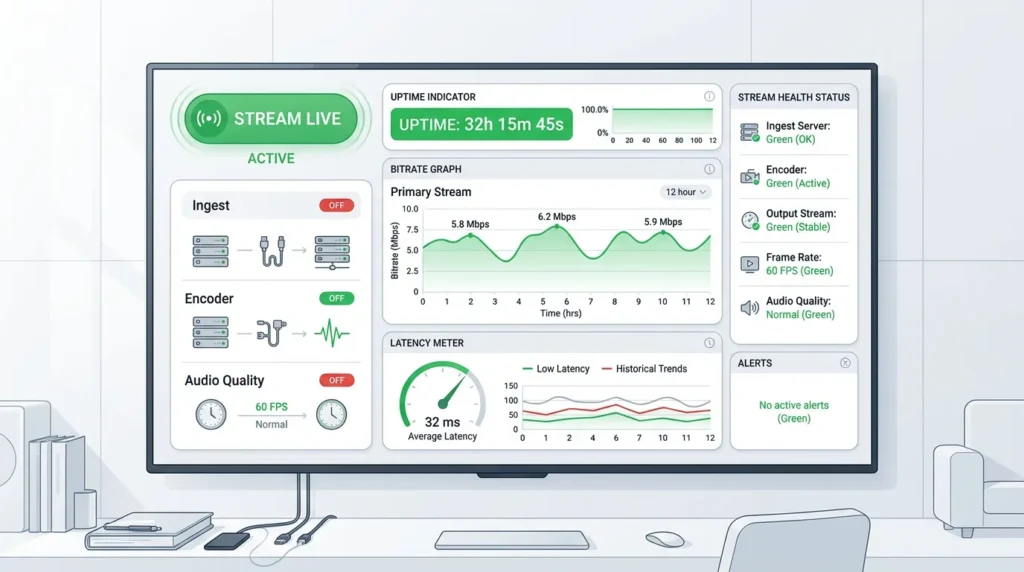
Skipping the Test Stream Going live directly without a test stream is a gamble. Even a two-minute private test can catch audio sync issues, missing video, or wrong codec configurations before they embarrass you in front of your audience.
Not Monitoring Stream Health in Real Time Once your stream is live, do not walk away. Use monitoring tools built into your streaming platform, server dashboard, or third-party tools like Grafana + Prometheus to watch bitrate, dropped frames, and viewer counts in real time.
Using Dynamic IP Addresses A dynamic IP on your encoder or server means the address can change after a reboot, breaking your stream connection without warning. Always configure static IPs for all streaming infrastructure components.
Maintenance and Long-Term Stability Tips
A great IPTV stream is not a one-time setup — it is an ongoing operation. Here is how to keep things running smoothly for the long term:
Keep Firmware and Software Updated Schedule quarterly firmware updates for all hardware encoders and streaming servers. Subscribe to manufacturer newsletters or GitHub repositories to be notified of critical security patches.
Clean Your Equipment Regularly Hardware encoders generate heat. Dust buildup in ventilation slots causes thermal throttling that degrades encoding performance over time. Clean equipment with compressed air every 3–6 months in high-dust environments.
Backup Your Configuration Files After completing your encoder setup, export and save your configuration file. If the device ever fails or needs a factory reset, you can restore your entire setup in minutes rather than hours.
Monitor Network Performance Continuously Use tools like PRTG Network Monitor, Zabbix, or even your router’s built-in traffic analysis to track bandwidth utilization trends. Spotting a slow creep toward 90% bandwidth saturation before it causes stream failures is far easier than troubleshooting a crash in progress.
Document Your Setup Maintain a simple document or spreadsheet listing all stream keys, server URLs, port configurations, static IPs, and encoder settings. This is invaluable when troubleshooting at 2 AM or onboarding a new team member.
Plan for Redundancy For mission-critical IPTV streams, always have a backup encoder pre-configured and ready to swap in. Hardware failures are rare but inevitable over time. A spare device means minutes of downtime instead of hours.
Conclusion
Building a high-quality, stable IPTV stream comes down to choosing the right hardware, protocols, and configurations — and then maintaining them consistently. From selecting H.265 encoding for bandwidth efficiency to setting static IPs, using CBR mode, and monitoring stream health in real time, every detail contributes to a broadcasting experience your viewers will notice and appreciate.
Whether you are a church looking to reach your congregation globally, an IPTV reseller scaling to thousands of subscribers, or a hotel delivering flawless in-room entertainment, these seven strategies will give you a measurable competitive edge.
Ready to elevate your IPTV streaming? Implement these IPTV stream strategies today and enjoy smoother, high-quality broadcasts. Share your experience in the comments or subscribe for more expert tips and tutorials!
Further Reading:
- Best IPTV Boxes for Every Budget
- How to Host Your Own IPTV Server
- Top IPTV Middleware Solutions for Resellers
- H.265 vs H.264: Which Codec Is Right for Your Stream?
Frequently Asked Questions
Q1: What is an IPTV stream and how does it differ from traditional broadcast?
An IPTV stream delivers live or on-demand video over IP networks using internet infrastructure, unlike traditional broadcast signals that rely on satellite or cable transmission. This means IPTV can be accessed on any internet-connected device — from smart TVs and smartphones to tablets and computers — without dedicated hardware receivers, offering far greater flexibility and scalability than legacy broadcasting systems.
Q2: Can I use one IPTV stream for multiple platforms simultaneously?
Yes, multi-streaming (also called simulcasting) to YouTube, Facebook Live, Twitch, and custom IPTV servers simultaneously is entirely possible with the right encoder or streaming software. Many modern hardware encoders support dual or multi-stream output natively. Software solutions like Restream or Castr can also rebroadcast a single RTMP feed to dozens of platforms at once, making it easy to maximize your audience reach from a single IPTV stream source.
Q3: What resolutions are commonly supported in a modern IPTV stream setup?
Most entry-level and mid-range setups comfortably support 1080p Full HD at 30fps. Higher-end hardware encoders with H.264 or H.265 encoding can handle 1080p at 60fps, and professional-grade solutions support 4K at 60fps for premium broadcasting environments. The resolution you can sustain in practice depends on your available upload bandwidth, encoder hardware capability, and the specifications of your streaming server.